CloudFunnels Advanced Page Cloning Feature - Now clone any page using your browser
Hello Folks, today we will look at the new feature that enables page cloning using Chrome Dev Tools.
Here at Teknikforce, we are committed to the long-term evolution of CloudFunnels to make it the best funnel software in the market, and with version 4.2.5 we are rolling out some new features.
Watch the Video
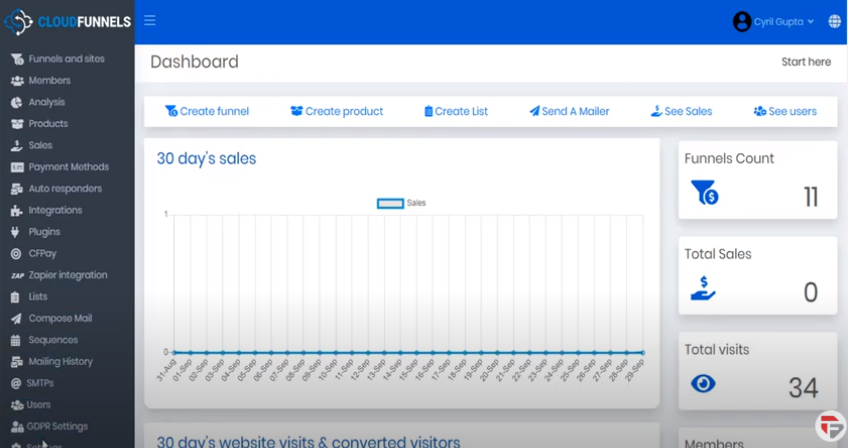
To see the version you are using:
- Go to the sidebar
- Click settings
- Look at your general settings
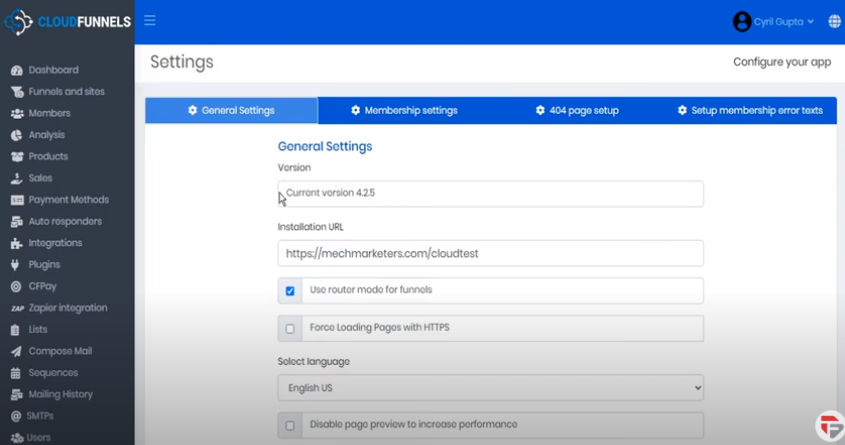
If you are running anything less than the current version of 4.2.5, Restart CloudFunnels and reassure to install the updates when you are prompted to.
One of the new features of Cloudfunnels is page cloning using Chrome Dev tools. So let’s head over to Funnels and sites
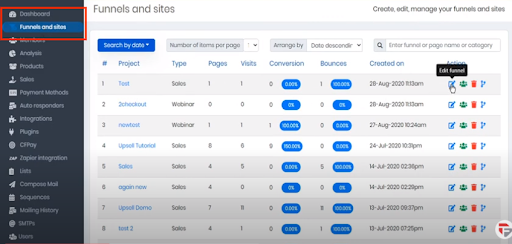
Here we will edit one of our existing funnels and let’s choose the sales page. Then choose a template.
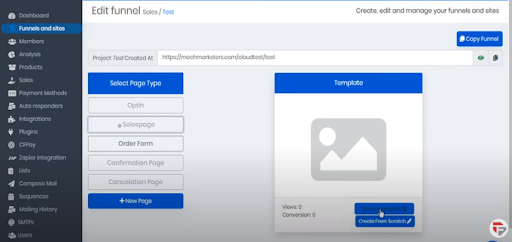
Now you may already be familiar with the Clone URL function that we had in CloudFunnels all along.
This allows you to take the URL of any website that you particularly like and copy it in the CloudFunnels.
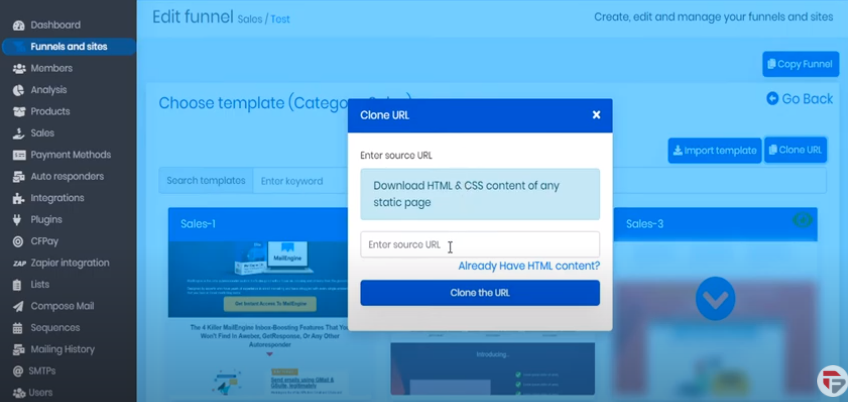
Over with this update, there is a more specific update about what you are exactly cloning. We noted here that you are downloading HTML & CSS content of any static page.
Now that’s most of the content of the page but it doesn’t include JavaScript or Ajacks. In this type of code won’t clone for security reasons. For example, many pages include Google or Facebook pixels or various third party APIs.
So if you’re attempting to clone a page that’s giving you problems once it is imported into CloudFunnels, you might try this new technique which uses Chrome Dev Tools.
So let’s take a look at this page, for example, to get the HTML code for this webpage using chrome dev tools do the following steps:
- Right-click on the page
- Click Inspect or as a shortcut you can press Ctrl+ Shift + I

-Over the elements panel, scroll to the very top and then right-click over the HTML code and select Edit as HTML
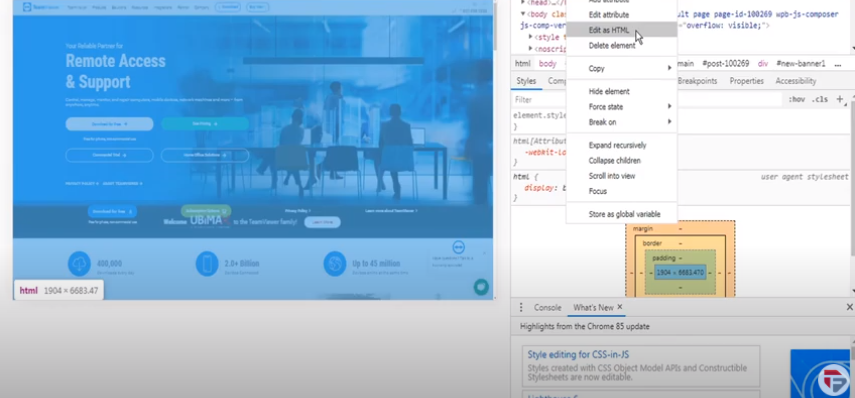
- And then from the very top section delete everything within the HTML tag that’s not the actual HTML. So you’ll be left with just the HTML Tag.
- Now go ahead and right-click again and select all, then copy that all to the Clipboard.
- Go back to CloudFunnels and Click on Already have the HTML content.
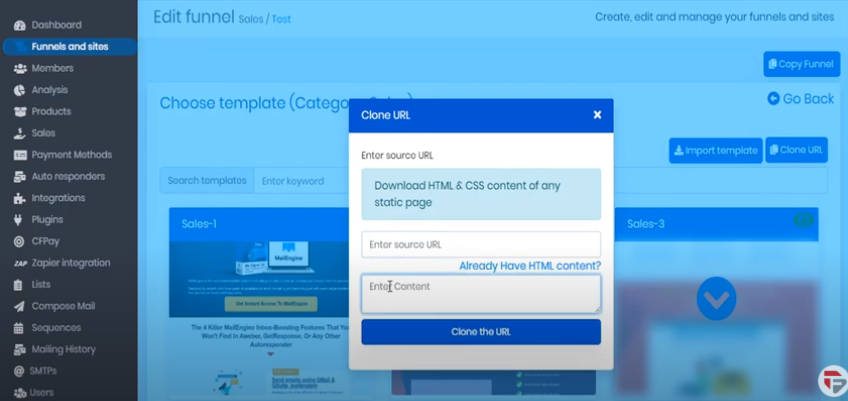
- Paste the content in the Enter the content box.
- We’ll go back to our page and we’ll copy the URL here at the top of the address bar and back to CloudFunnels and paste that in.
- Click on Clone the URL
And once the cloning process is complete we can visit the page and go to the page settings copy the page URL to the clipboard
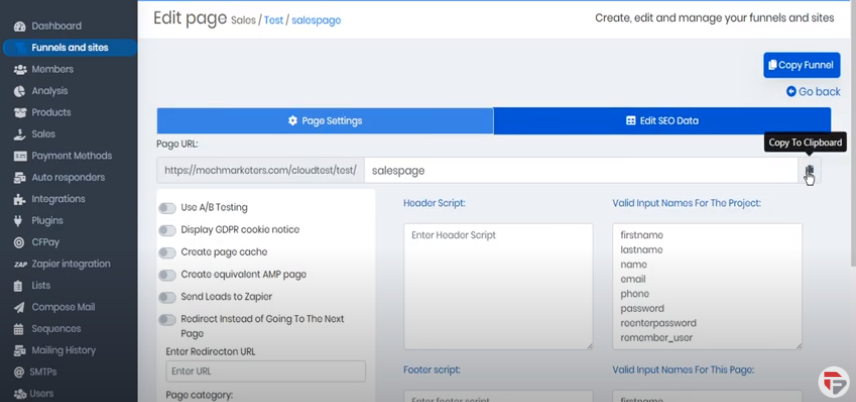
Open a new tab and paste the URL and here we can see the cloned version of the website.

And that’s how to use the new page cloning feature using Chrome Dev Tools.